Getting Started with MCP
What the Model Context Protocol actually is, how hosts and servers fit together, and a simple way to try it without getting lost in jargon.
A plain-English intro to the Model Context Protocol, what it is, why people use it, and how to try it safely.
You’ve probably done this: you ask an AI assistant something useful, “What’s failing in production?” or “Summarize open bugs for this repo”, and it politely admits it has no idea. Not because it’s dumb, but because it can’t see your systems.
That’s the gap MCP fills.
MCP stands for Model Context Protocol. It’s an open way for AI apps to connect to tools and data you already use, GitHub, databases, docs, internal APIs, without inventing a brand-new integration for every chat product.
If that still sounds abstract, try this: MCP is a bit like USB-C for AI. One plug style. Many devices. Your assistant doesn’t need a custom cable for every tool.
The problem MCP solves
Before something like MCP, teams built one-off connectors:
- a Slack plugin for one AI app
- a GitHub plugin for another
- a database hook for a third
Same idea, repeated work, different APIs. When a new AI product showed up, you started over.
MCP says: build (or install) a connector once, as an MCP server. Any compatible AI app can talk to it the same way.
You still pick what that connector is allowed to do. MCP doesn’t magically open your whole company. It gives a shared language for “here’s data” and “here’s an action.”
Three words that confuse everyone (made simple)
People get stuck on host, client, and server. Ignore the networking textbook definitions for a minute.
- Host = the AI app you actually open. Examples: Cursor, Claude Desktop, or another agent chat. This is where you type.
- Server = a small program that knows how to talk to one system. Examples: a GitHub server, a filesystem server, a Postgres server. This is what you install or build.
- Client = the middle piece inside the host that keeps the connection. You almost never build this yourself unless you’re making an AI product. For day-to-day use, you can treat it as “the host’s wiring.”
So in practice: you talk to the host. The host uses MCP to call a server. The server talks to GitHub / files / your API and sends results back.
That’s the whole shape:
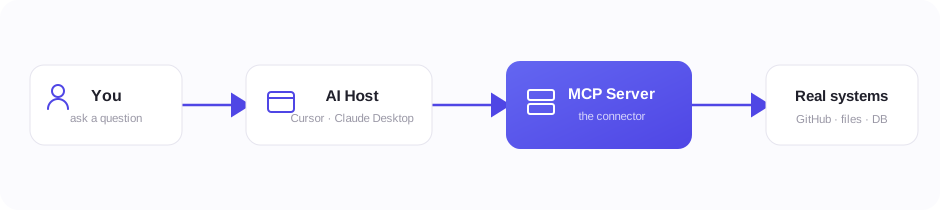
You talk to the host. The host reaches real systems through MCP servers.
Tools, resources, prompts, what’s the difference?
Servers can offer a few kinds of things. Newcomers mix these up, so here’s the everyday version:
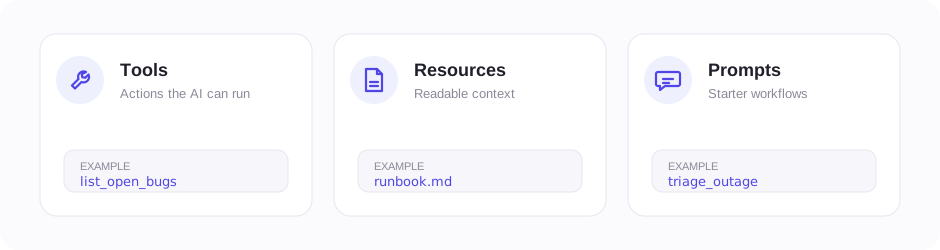
- Tools are actions. “Search issues.” “Create a ticket.” “Run this read-only query.” The model can ask to run them (often with your approval).
- Resources are readable stuff. A doc, a file, a record, context the app can pull in.
- Prompts are starter templates. A ready-made workflow like “triage an outage” so you don’t rewrite the same instructions every time.
If you remember only one thing: tools do things; resources provide reading material.
A concrete example (this is what it feels like)
Imagine you’re in an IDE agent like Cursor, and you’ve connected a GitHub MCP server.
You type:
“List open bugs labeled
sev-1in our backend repo.”
Roughly what happens:
- The AI decides it needs live GitHub data.
- It calls a tool on the GitHub MCP server (something like “list issues”).
- The server hits GitHub and returns structured results.
- The AI answers using that data, not a guess from training.
You’re still in control when the host asks you to approve a tool call. That approval step matters, especially for anything that writes or deletes.
This is the “aha” moment for most people: the chat stopped being a lonely chatbot and started acting like it had hands, limited, reviewable hands.
What MCP is not
A few expectations to drop early:
- It is not a smarter model by itself. Bad questions still get bad answers.
- It is not a vector database or a full agent framework.
- It is not “give the AI admin access to everything.” That’s a configuration choice, and usually a bad one.
MCP is the socket. You still decide what gets plugged in.
How to try it without overwhelming yourself
If you’re new, don’t start by writing a server.
- Open an AI app that supports MCP.
- Add one well-known server, filesystem or GitHub is a common first choice.
- Ask a question that requires live data (“What’s in this folder?” / “What PRs are open?”).
- Watch the tool call and approval flow so you can see the machinery.
- Only later: build a tiny custom server with one read-only tool against a safe API.
Configuration is usually a small settings block: server name, how to start it (or its URL), and auth via environment variables. The exact screen differs by app; the idea doesn’t.
Official starting point: modelcontextprotocol.io, including its architecture overview.
Safety habits worth learning on day one
MCP is powerful because it can reach real systems. Treat it that way.
- Start read-only. Add write actions later.
- Don’t paste API keys into the chat. Put secrets in env vars / proper auth.
- Prefer small, clear tools over one giant “do anything” tool.
- Use staging credentials while you experiment.
- Before enabling a server, ask: can this read my files? hit the network? change tickets?
Most early mistakes aren’t “I don’t understand MCP.” They’re “I connected something too powerful too soon.”
Who should care about this?
If you use AI for work and keep wishing it could see your tickets, docs, or cloud, MCP is how that wish is turning into a standard.
If you build software, MCP is becoming a practical way to expose your product to AI apps without maintaining five different plugin systems.
You don’t need to memorize JSON-RPC or transport modes on day one. Those details matter when you build production servers. For getting oriented, the host → server → real system picture is enough.
The short version
MCP gives AI apps a shared way to use external tools and data. You use a host (the chat/IDE). You connect servers (the connectors). Servers offer tools and readable context. Start with one trusted server, keep permissions tight, and grow from there.
That’s it. Once that clicks, the rest of the ecosystem, custom servers, registries, remote setups, stops feeling like alphabet soup and starts feeling like normal engineering.