Azure Cloud: Deploying (and Debugging) Your First Static Website
Before you provision anything complicated, you need to understand how Azure organizes resources, and how to survive the moment your first deployment doesn't work the way you expected. Here are the basics, plus a real walkthrough of deploying a static site and fixing it when it breaks.
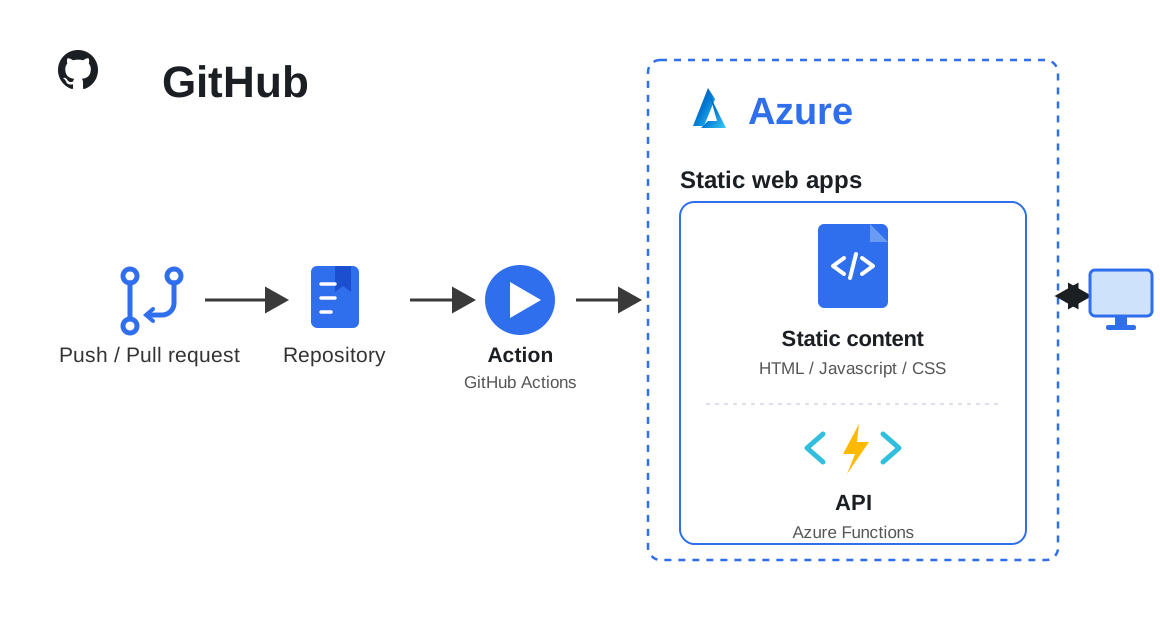
Welcome to cloud infrastructure. Before you provision anything complicated, you need to understand how Azure organizes resources, and you need to survive the moment your first deployment doesn’t work the way you expected. This post covers the basics, then walks through a real scenario: deploying a static website to Azure and fixing it when it breaks.
Why Azure, and Why Not Just a Local Server
Azure is Microsoft’s cloud platform. Instead of buying and maintaining physical servers, you rent compute, storage, and networking on demand, and Azure handles the hardware, uptime, and scaling. Your team doesn’t manage server racks; it manages configuration.
The Core Vocabulary
- Subscription: the billing and management boundary for your Azure resources.
- Resource Group: a folder that groups related resources (a website, its database, its storage) so they can be managed and deleted together.
- Region: the physical data center location your resource runs in (for example, East US, West Europe), which affects latency and compliance.
- Resource: any Azure service you create, such as a Storage Account or Web App.
- Azure Static Web Apps: a service purpose-built for hosting static sites (HTML/CSS/JS, or frontend frameworks like React) with free SSL, a global CDN, and built-in CI/CD from GitHub.
We’re using Static Web Apps instead of a full Azure App Service here because for a static site it’s simpler, cheaper (free tier), and deploys automatically from your GitHub repo, with no server management at all.
What Is an Azure Static Web App?
An Azure Static Web App (SWA) is an Azure service used to host frontend applications such as:
- HTML/CSS/JavaScript websites
- React applications
- Angular applications
- Vue applications
- Next.js (static export)
- Blazor WebAssembly
It is designed specifically for static websites and Single Page Applications (SPAs).
Unlike an App Service, there is no server to manage. Azure automatically hosts your static files and serves them globally using Azure’s CDN, making the application fast and highly available.
Why Use Static Web Apps?
Some of the benefits:
- Easy deployment directly from GitHub.
- Automatic CI/CD using GitHub Actions.
- Global CDN for fast content delivery.
- Free SSL certificates.
- Custom domain support.
- Automatic preview environments for pull requests.
- Built-in authentication support (Microsoft, GitHub, Google, and others).
- No infrastructure or VM management.
The Everyday Workflow
- Push your static site’s code to a GitHub repository.
- In the Azure Portal, create a new Static Web App resource, and connect it to that repo.
- Azure automatically generates a GitHub Actions workflow file in your repo and deploys on every push to
main.
Azure drops the workflow file into your repo under .github/workflows:
my-static-website/
│
├── .github/
│   └── workflows/
│       └── azure-static-web-apps.yml
# .github/workflows/azure-static-web-apps.yml (auto-generated by Azure)
name: Azure Static Web Apps CI/CD
on:
  push:
    branches: [main]

jobs:
  build_and_deploy_job:
    runs-on: ubuntu-latest
    steps:
      - uses: actions/checkout@v3
      - name: Build and Deploy
        uses: Azure/static-web-apps-deploy@v1
        with:
          azure_static_web_apps_api_token: ${{ secrets.AZURE_STATIC_WEB_APPS_API_TOKEN }}
          app_location: "/"
          output_location: "dist"
Push code, Actions runs, and the site is live at https://<your-app-name>.azurestaticapps.net. That’s the 90% case.
Now let’s talk about the moment nearly every new cloud dev hits: the deploy that “succeeds” but the site doesn’t actually work.
Create a Static Web App Using Only the Azure CLI
If you’d rather stay in the terminal, you can do the whole thing from the Azure CLI.
1. Log in to Azure
az login
If you have multiple subscriptions:
az account list --output table
Set the desired subscription:
az account set --subscription "<SUBSCRIPTION_ID>"
2. Install or update the Static Web Apps extension
az extension add --name staticwebapp
Or update it:
az extension update --name staticwebapp
Verify:
az extension list --output table
3. Create a resource group
az group create \
  --name rg-static-webapp \
  --location eastus2
4. Create the Static Web App and connect it to GitHub
az staticwebapp create \
  --name my-static-webapp \
  --resource-group rg-static-webapp \
  --location eastus2 \
  --source https://github.com/<github-username>/<repository-name> \
  --branch main \
  --login-with-github
During execution:
- A browser opens for GitHub authentication.
- Grant access to your repository.
- Azure creates the Static Web App, the GitHub Actions workflow, the deployment secret (
AZURE_STATIC_WEB_APPS_API_TOKEN), and the initial deployment.
5. Verify the Static Web App
az staticwebapp show \
  --name my-static-webapp \
  --resource-group rg-static-webapp
6. Get the website URL
az staticwebapp show \
  --name my-static-webapp \
  --resource-group rg-static-webapp \
  --query defaultHostname \
  -o tsv
Example output:
polite-hill-028ff530f.7.azurestaticapps.net
7. List all Static Web Apps
az staticwebapp list --output table
8. Get the deployment token
az staticwebapp secrets list \
  --name my-static-webapp \
  --resource-group rg-static-webapp
9. List environments
az staticwebapp environment list \
  --name my-static-webapp \
  --resource-group rg-static-webapp
10. Delete the Static Web App
az staticwebapp delete \
  --name my-static-webapp \
  --resource-group rg-static-webapp
Real Scenario: The Deploy That Breaks
You’ve built a small React app with client-side routing (react-router), with pages like /about and /projects. You push to main, GitHub Actions runs, shows a green checkmark, and Azure confirms the deployment succeeded.
You visit the homepage, and it loads fine. You click into /projects, and it works. But then you refresh the page while on /projects, or someone shares that direct link with a teammate, and instead of your page they get: 404 - Not Found.
Your build didn’t fail. Your code isn’t broken. So what happened?
Diagnosing it
Static Web Apps serves files directly. It doesn’t know that /projects is a route your JavaScript router handles client-side. When someone requests /projects directly, Azure looks for an actual file at that path, finds nothing, and returns a 404 before your React app ever loads.
This is one of the most common first issues with static site hosting, and it’s not an Azure bug, it’s missing configuration.
Fixing it
Azure Static Web Apps looks for a config file to control routing behavior. Add one at the root of your project:
// staticwebapp.config.json
{
  "navigationFallback": {
    "rewrite": "/index.html",
    "exclude": ["/images/*.{png,jpg,gif}", "/css/*"]
  }
}
This tells Azure: for any route that isn’t a real file, serve index.html instead of a 404. That hands control back to your JavaScript router, which then renders the correct page.
git add staticwebapp.config.json
git commit -m "Add SPA routing fallback config for Azure Static Web Apps"
git push origin main
GitHub Actions redeploys automatically. Refresh /projects again, and now it works.
Where to check when something’s wrong
- GitHub Actions tab: did the build/deploy step actually succeed, or silently fail?
- Azure Portal, your Static Web App, Overview: confirms the deployment and gives you the live URL.
- Azure Portal, Functions/Log stream (if using an API backend): real-time logs for backend errors.
Best Practices That Prevent Most Headaches
- Test the deployed URL, not just localhost. Routing, environment variables, and paths can behave differently once deployed.
- Check
app_locationandoutput_locationin your workflow file. A mismatched build output folder is the number one cause of “deployment succeeded but the site is blank.” - Keep secrets in GitHub Secrets, never in code. Azure’s deployment token and any API keys belong in your repo’s Settings, Secrets, not in committed files.
The Takeaway
A “successful” deployment isn’t the finish line, it’s the point where you start verifying the site actually behaves the way users will experience it. Cloud platforms like Azure give you a lot of automation for free, but routing, config, and environment differences are still yours to catch.
By the end of your first cloud project, checking the deployed URL will be as automatic as checking that your code compiles.